

1.Download Authenticator App
- Before we start, download Amazon Authenticator App by searching for it in your Apple device’s App Store.

2.Locate 2FA Settings
- Log in to your Amazon account and select Account from the drop-down menu next to your profile picture in the upper right corner.

3.Login and Security
- Find and click on Login & security.

4.Two-Step Verification Settings
- Choose Edit beside Two-Step Verification (2SV) Settings.

5.Get Started
- Here you can get more info on how Two-Factor Authentication works and how to use it. When ready, click on Get Started.

6.Authenticator App
- Select Authenticator App as the preferred method of authentication

7.Set up Two-Factor Authentication
- In this step is shown the QR Code that contains the secret key which you need to scan with Authenticator App. Keep this page open as you reach for your device: iPhone, iPad or iPod.
Note: Do not scan the demo image shown below.
8.Capture QR Code
- Open Authenticator App, tap the plus
 button, and hold your device up to the computer screen to scan the QR Code from Amazon web page.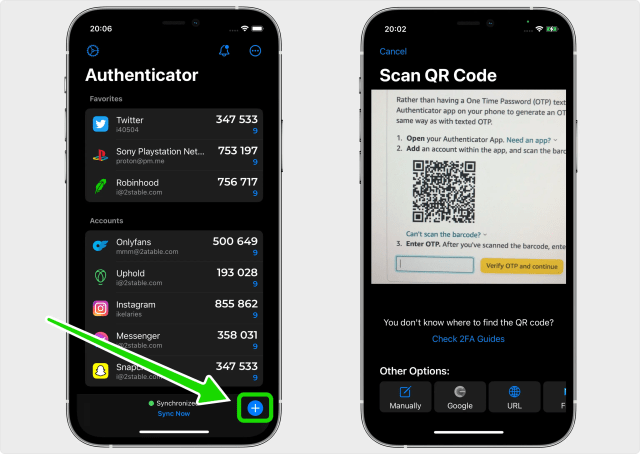
9.Verification code
- After successfully scanning the QR Code, Authenticator App will automatically choose the Amazon logo and autofill the account name and secret key. Click on Save when ready.
Tip: You can choose the account icon by pressing on icon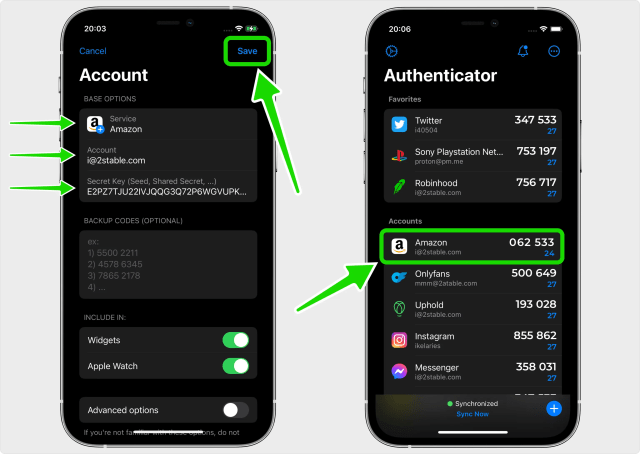
10.Confirm OTP code
- Once your Amazon account has been successfully added to the Authenticator App, enter the 6-digit code on the Amazon website and click Verify OTP and continue

11.Two-Step Verification is Enabled
- You have successfully enabled two-factor authentication(2FA) to protect your Amazon account, from now on, you will need to enter a One Time Password(OTP) from the Authenticator App when you would like to log in to your Amazon account.

You’re all set! You’ve enabled Two-Factor Authentication (2FA) for your Amazon account. To learn more, visit the Amazon support page. Stay safe!
You must be logged in to post a comment.