

1.Download Authenticator App
- Before you can set up Two-Step Verification for your Microsoft account you’ll need to download Microsoft Authenticator App on your device by searching for it in your Apple device’s App Store or click on the button below Download on the App Store.

2.Locate 2FA Settings
- Sign in to your Microsoft account, click on your account icon at the top right of the screen, and click My Microsoft account from the drop-down menu.

3.Security Dashboard
- Under the Security section click on Security dashboard button.

4.Advanced Security Options
- Locate Advanced security options and click on Get started.

5.Turn On Two-Step Verification
- Locate Additional security section, and under the Two-step verification click the Turn on button.

6.Set Up Two-Step Verification
- Click on Next button to continue.

7.Different Authenticator App
- Click on set up a different Authenticator app.

8.Setting Up Authenticator App
- In this step is shown the QR Code that contains the secret key which you need to scan with Authenticator App. Keep the page open as you reach for your device.
Note: Do not scan the demo image shown below.
9.Scan 2Fa QR Code
- Open Authenticator App, tap the plus
 button, and hold your device up to the computer screen to scan the QR Code from Microsoft web page.
10.6-Digits Verification Code
- After successfully scanning the QR Code given by Microsoft on step 8, Authenticator App will automatically choose the Microsoft logo and autofill the account name and secret key. Click on Save when ready.
Tip: You can choose the account icon by pressing on icon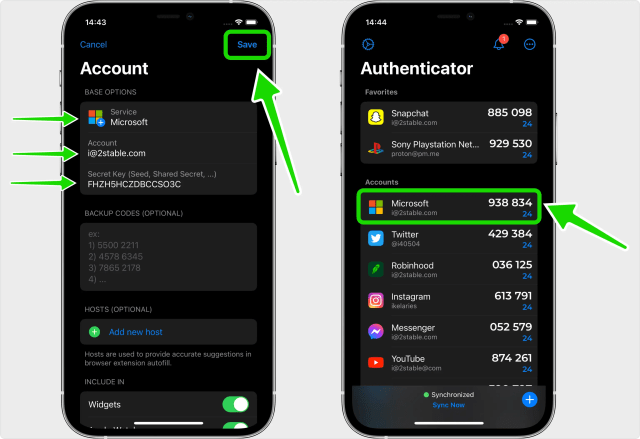
11.Confirm Authenticator OTP code
- Returning to the Microsoft web page, type in the six digit code from Authenticator App in the appropriate field. When done click Next.

12.Next Step
- Click on Next button to proceed to final step.

13.Finish!
- You have successfully enabled two-factor authentication(2FA) to protect your Microsoft account, from now on, you will need to use the Authenticator App when you would like to log in to your Microsoft account. Press on Finish and that’s all.

You’re all set! You’ve enabled Two-Factor Authentication (2FA) for your Microsoft account. To learn more, visit the Microsoft support page. Stay safe!
You must be logged in to post a comment.